
1. What Causes Blue Screen Errors on Gaming PCs?
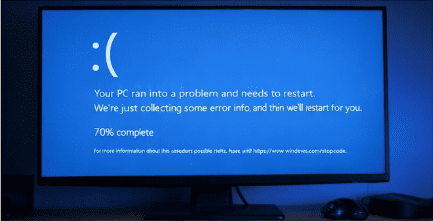
Gaming PCs can experience blue screens; your system may crash repeatedly. PCs blue-screen more often than regular computers because games push hardware to its maximum performance. High GPU usage, CPU load, and RAM consumption increase system stress. When something becomes unstable — such as drivers, system files, or hardware — the system protects itself by triggering a blue screen error.
Most gaming PCs today run Microsoft-developed operating systems, and while modern systems are stable, crashes can still occur when drivers, hardware, or updates conflict. Overclocking, custom BIOS settings, or aggressive performance tuning can also increase the risk of a pc blue screen during gameplay.
Understanding the root cause is the first step toward permanently fixing the blue screen rather than just treating symptoms.
2. Common Blue Screen Error Triggers Gamers Should Know
Not all blue-screen errors occur for the same reason. Knowing common causes helps you troubleshoot faster when you get a pc blue screen.
Driver Problems
Graphics drivers are a major cause of blue-screen crashes, especially on systems with GPUs from companies like NVIDIA or AMD. Corrupted or outdated drivers can cause system conflicts during gaming.
Hardware Failures
Failing RAM, overheating CPUs (often made by Intel or AMD), or dying SSDs can all cause sudden blue-screen errors.
Overheating
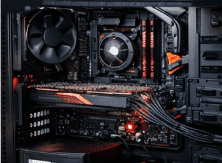
Gaming sessions generate intense heat. If cooling systems fail, thermal shutdowns can trigger a pc blue screen.
Corrupted System Files
If core system files are damaged, your system may crash repeatedly with blue-screen messages.
Malware or Bad Software
Some programs modify system files or drivers incorrectly, leading to recurring blue-screen errors.
Identifying which category your crash falls into makes fixing it much easier.
3. First Steps to Fix Blue Screen Errors Quickly
When you first see a blue screen on your Pc, start with simple troubleshooting before assuming hardware failure.
Restart Your PC
A single pc blue screen can happen due to temporary glitches. Restart and monitor if it happens again.
Write Down Error Codes
Most blue screen crashes show error names like:
MEMORY_MANAGEMENT
IRQL_NOT_LESS_OR_EQUAL
CRITICAL_PROCESS_DIED
These help identify the root cause.
Disconnect New Hardware
If you recently installed new components and now see blue-screen errors, temporarily remove them and test.
Undo Recent Changes
New drivers, updates, or software can trigger a blue screen on a PC if they are incompatible.
These quick checks fix many basic blue screen issues without deep troubleshooting.
4. Update Drivers and Windows
Outdated drivers are among the most common causes of recurring blue-screen</span> errors.
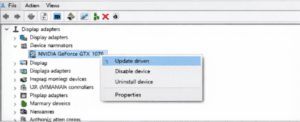
Update GPU Drivers
Update Motherboard and Chipset Drivers
Chipset drivers control communication between hardware parts. Old versions can cause random blue screen failures.
Install Windows Updates
Operating system updates often fix stability bugs that cause blue-screen errors.
How Often Should You Update?
GPU Drivers → Every major release
Windows Updates → Automatically
Chipset Drivers → Every few months
Keeping everything up to date dramatically reduces risks.
5. Check Hardware Health and Temperatures
If software fixes don’t stop blue screen errors, hardware could be the problem.
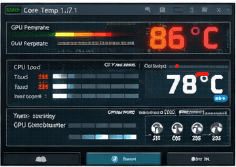
Monitor Temperatures
While gaming:
CPU: Ideally under 85°C
GPU: Ideally under 85°C
Higher temperatures can trigger a protective PC blue-screen shutdown.
Test Your RAM
Bad RAM often causes random blue-screen crashes. Memory diagnostic tools can detect errors.
Check Storage Health
Failing SSDs or hard drives can corrupt files and trigger blue screen errors.
Clean Your PC
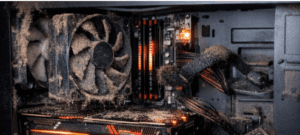
Dust buildup restricts airflow, leading to overheating. Cleaning fans and heatsinks can prevent future PC blue-screen events.
6. Advanced Fixes for Persistent Blue Screen Errors
If you still get a blue-screen error, you may need more advanced solutions.
Run System File Checker
This scans and repairs damaged system files that may cause blue screen crashes.
Reset BIOS Settings
Overclocking or aggressive performance tuning can cause instability and PC blue-screen crashes.
Reinstall Drivers Completely
Use clean driver-uninstall tools before reinstalling to remove corrupted files that are causing BSOD.
Reinstall Windows (Last Resort)
A fresh installation removes deep-seated system corruption and usually eliminates stubborn blue-screen problems.
Always back up data before reinstalling.
Final Thoughts: Preventing Future Errors
The best way to avoid a blue screen on a Pc is to prevent them. Keep drivers updated, monitor temperatures, and avoid unstable overclock settings. Most of these crashes are preventable with regular maintenance and updates.
If you experience frequent blue screen crashes during gaming:
Check drivers
Monitor temps
Test hardware
Update system files
Consider reinstalling Windows
Gaming PCs are powerful but require maintenance. By following the steps above, you can fix most blue-screen errors and keep your system running smoothly during long gaming sessions.