
A dead motherboard is one of the most frustrating problems any PC gamer can face. You press the power button… and nothing happens. No lights, fans, or display. Just silence.
Before you panic and order a replacement, you need to determine whether the motherboard is actually dead — or if another component is causing the issue. Many gamers assume the worst when their system won’t boot, but in reality, power supply issues, RAM faults, or even a bad cable can cause it to appear as if the motherboard is dead.
In this complete pc motherboard repair guide, you’ll learn:
How to know if the motherboard is dead
The most common causes of failure
Safe diagnostic steps
When motherboard repair is possible
When replacement is the smarter move
Let’s start by confirming the problem.
1. How to Know If Motherboard Is Dead (Signs & Symptoms)
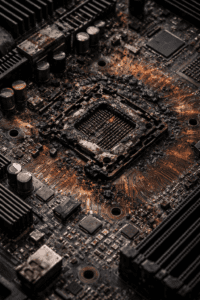
The first step in any motherboard repair process is identifying the symptoms correctly. Many hardware failures look similar, so diagnosing properly saves time and money.
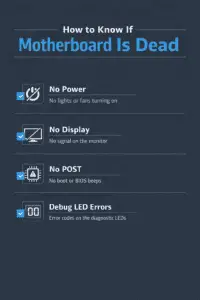
Here are the most common signs of a dead motherboard:
No power at all (no fans, no LEDs)
The system powers on, but no display
Continuous boot loops
No POST (Power-On Self-Test)
No beep codes
Burning smell or visible damage
Random shutdowns before complete failure
One of the biggest questions people search for is: how to know if the motherboard is dead or if it’s the power supply?
If there are no lights, no response, and you’ve confirmed the outlet and power cable work, the motherboard or PSU is likely the issue. However, if the motherboard LEDs light up but nothing displays, it may not be completely dead.
Modern gaming boards often have debug LEDs that indicate CPU, RAM, or GPU issues. If none of these indicators activates, that strongly suggests a dead motherboard.
Now let’s look at what causes this failure.
2. Common Causes of a Dead Motherboard
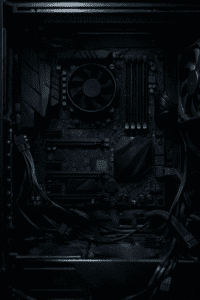
Understanding the cause makes pc motherboard repair easier and sometimes preventable in the future.
1. Power Surges
A surge from a lightning strike or faulty outlet can instantly fry motherboard components.
2. Faulty Power Supply
A bad PSU can send unstable voltage, slowly damaging motherboard circuits.
3. Overheating
Poor airflow, dust buildup, or failed cooling can overheat VRMs and chipsets.
4. BIOS Update Failure
A corrupted BIOS flash can make the board appear dead.
5. Liquid Damage
Spilt drinks or high humidity can cause short circuits.
6. Physical Damage
Bent pins, cracked PCB layers, or improper installation.
Many gamers assume a dead motherboard is random, but most failures are caused by power instability or heat.
Before attempting motherboard repair, we need to confirm it’s not another component.
3. Step 1: Basic Power Checks Before Motherboard Repair
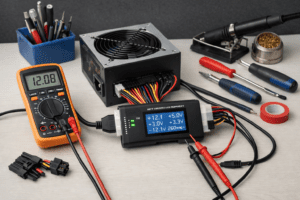
Before you assume the board is dead, follow these diagnostic steps carefully.
✔ Test the Power Supply
Use a PSU tester or paperclip test to confirm it powers on. If the PSU fails, the motherboard may be fine.
✔ Check the Power Button
Try shorting the power switch pins on the motherboard using a screwdriver. If it starts, your case power button is faulty.
✔ Inspect for Physical Damage
Look for:
Burn marks
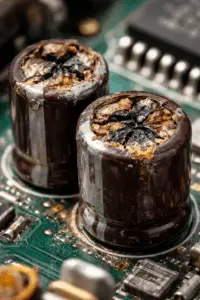
Swollen capacitors
Loose components
Broken traces
✔ Remove All Components
Disconnect:
GPU
RAM
SSD/HDD
Extra USB devices
Try booting with only:
CPU
One RAM stick
PSU
This minimal setup helps isolate the issue.
If there is still no response, the chances of a dead motherboard increase significantly.
4. Step 2: Testing the Motherboard Outside the Case
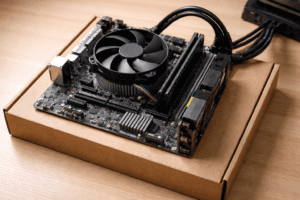
Sometimes the issue isn’t the board — it’s a short against the case.
This is called a “breadboard test.”
How to Perform It:
Remove the motherboard from the case.
Place it on a non-conductive surface (cardboard box).
Connect PSU cables.
Short power pins to start.
If it boots outside the case, your issue was a grounding or standoff problem — not a dead motherboard.
In the event it still doesn’t power on, check:
CPU socket pins
RAM slot damage
BIOS chip condition
If there are absolutely no signs of life, the board likely needs repair or replacement.
5. Can a Dead Motherboard Be Repaired?
This is where many gamers get confused.
Yes, motherboard repair is possible — but only in certain situations.
Repairable Issues:
Blown capacitors
Corrupted BIOS (can reflash)
Loose power connectors
Minor trace damage
Difficult or Expensive Repairs:
Burned chipsets
Severe power surge damage
Multi-layer PCB cracks
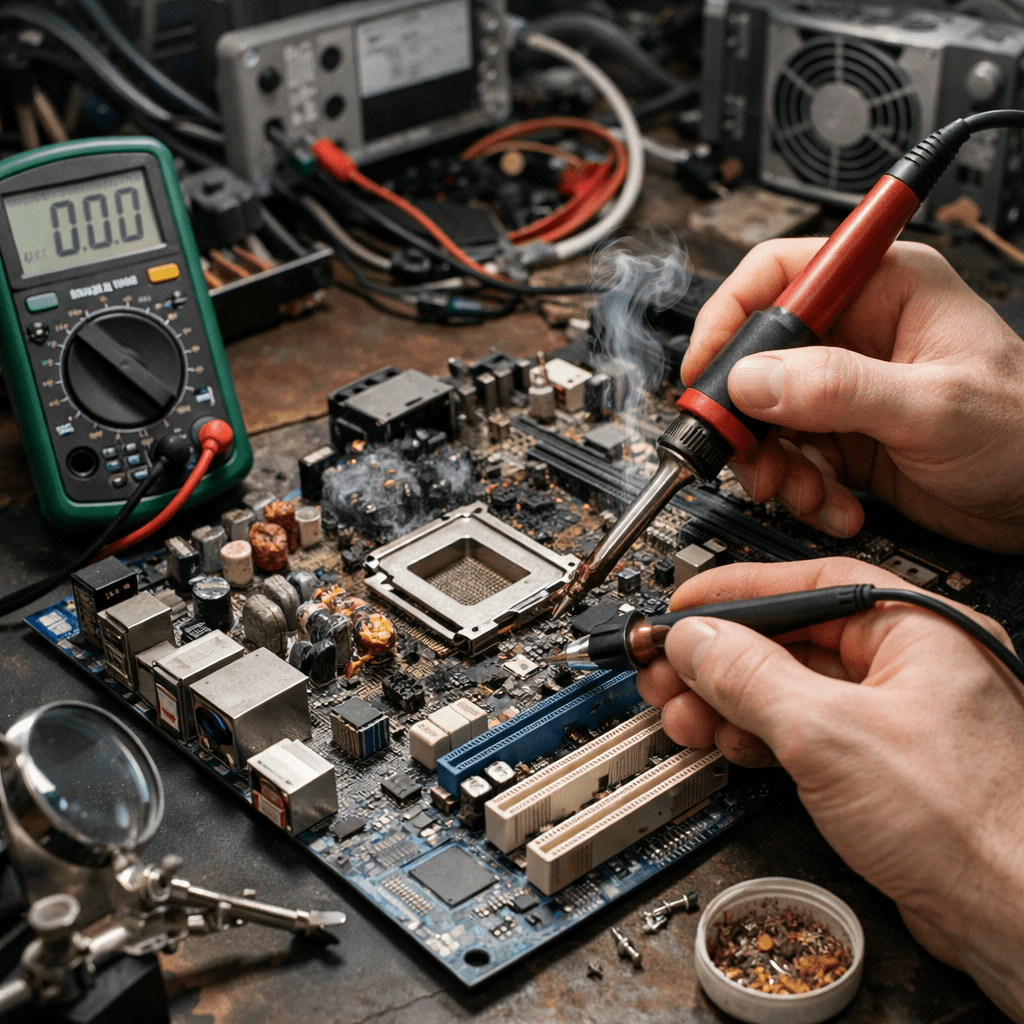
Professional pc motherboard repair services use specialised soldering equipment and diagnostic tools. However, for most gamers, replacing the board is cheaper than repairing it.
Motherboard repair costs can range from $100–$250 depending on damage. Entry-level gaming boards sometimes cost less than repair services.
If the board is under warranty, always check with the manufacturer first.
6. When to Replace Instead of Attempting Motherboard Repair
Sometimes replacing the board is simply the smarter choice.
Replace your motherboard if:
The board shows burn marks near the VRMs
The chipset is damaged
There are no debug lights at all
The repair cost exceeds half the price of a new board
The board is outdated
Upgrading can even improve performance if you move to a newer chipset with better power delivery and PCIe support.
If you confirm a dead motherboard, consider:
Matching your CPU socket type
Ensuring RAM compatibility
Choosing reliable brands
Using a surge protector to prevent future damage
Final Thoughts: Diagnosing and Fixing a Dead Motherboard
A dead motherboard doesn’t always mean your gaming PC is beyond saving. Many times, what appears to be total failure is actually a faulty PSU, a bad RAM stick, or a short circuit.
The key steps are:
Confirm the power supply works
Strip system to minimal components
Test outside the case
Inspect for visible damage
Evaluate repair vs replacement
If you’re wondering again how to know if the motherboard is dead, remember this: a truly dead board shows no response even with confirmed working power and minimal components installed.
While motherboard repair is sometimes possible, replacement is often more practical for gamers who want reliability and performance.
Taking preventive steps like cleaning dust, monitoring temperatures, and using surge protection can help you avoid another pc motherboard repair situation in the future.