
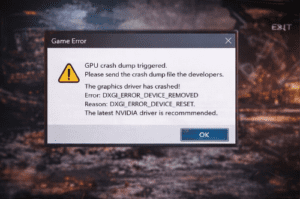
If you’ve ever seen the message “GPU crash dump triggered” or experienced a sudden freeze while gaming or working, you know how frustrating it can be. Graphics cards are the backbone of a smooth PC experience, and when they fail, it can disrupt everything from high-end gaming to video editing or even regular computing.
In this guide, you’ll learn why your GPU keeps crashing, the common causes behind it, and a detailed, step-by-step approach to fix it. Whether your issue is driver-related, overheating, or a hardware fault, this guide has you covered. By the end, you’ll not only fix the current GPU crash but also prevent future crashes.
Why Your GPU Keeps Crashing
Understanding the root cause is essential. A GPU crash can happen for several reasons:
Driver Problems – Outdated, corrupted, or incompatible drivers are the leading cause.
Overheating – Dust accumulation, poor airflow, or failed cooling can make GPUs unstable.
Power Supply Issues – A PSU that can’t provide enough wattage or fluctuates can cause crashes.
Hardware Faults – Faulty GPUs, RAM, or motherboards can create instability.
Software Conflicts – Background apps, antivirus programs, or Windows updates may trigger errors.
By carefully diagnosing the issue, you can apply the correct fix quickly and prevent repeated crashes.
Common Causes of GPU Crashes
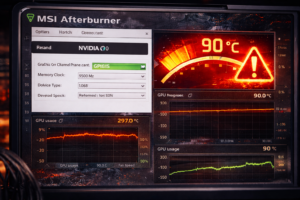
Before jumping into fixes, it’s important to understand what triggers GPU failures. Here’s a breakdown:
1. Driver Issues
Drivers communicate between your GPU and the operating system. If the driver is outdated or corrupt:
Your GPU may fail to render graphics correctly.
Applications or games may crash unexpectedly.
Windows may log errors like “GPU crash dump triggered.”
2. Overheating
Excessive heat is a silent GPU killer. Causes include:
Dust buildup inside the case or the GPU fan
Poor airflow or blocked vents
Overclocking beyond safe limits
High temperatures can trigger automatic shutdowns or system freezes to prevent permanent damage.
3. Power Supply Problems
Your GPU requires a stable and sufficient power source:
Underpowered PSUs cause instability
Faulty power connectors or fluctuating voltage trigger crashes
Some GPUs demand more wattage than what’s available, especially during gaming
4. Hardware Faults
Even brand-new GPUs can fail. Signs include:
Random crashes even in simple apps
Artifacts or visual glitches on screen
Persistent failure after software fixes
5. Software Conflicts
Programs running in the background may interfere with GPU processes:
Antivirus scanning while gaming
Windows update in progress
Other apps are using GPU resources inefficiently
Step-by-Step Fixes for GPU Crash Dump Triggered
Here’s a practical, step-by-step approach to get your GPU stable again. These methods are arranged from the most common/easiest fixes to the advanced/hardware solutions.
1. Update Your GPU Drivers

Drivers are the most common culprit. Here’s how to update safely:
Identify your GPU:
Press Windows + R, type dxdiag, and check the Display tab.
Download the latest drivers:
Uninstall old drivers using DDU:
Download Display Driver Uninstaller (DDU)
Run in Safe Mode → select GPU → Clean and Restart
Install new drivers:
Run downloaded installer → select clean install → restart
Test stability:
Run games or GPU-intensive apps
Check if the GPU crash dump triggered persists
Tip: Always use official manufacturer drivers, not Windows auto updates.
Alt text for images: “Updating NVIDIA GPU driver using official installer to fix crash dump errors.”
2. Reseat or Reinstall the GPU
Improperly seated GPUs can trigger crashes:
Power off the PC and unplug it.
Open case → carefully remove GPU.
Clean PCIe slot and GPU contacts using compressed air.
Reinsert the GPU firmly into the slot.
Connect power connectors → boot PC → test.
Alt text for images: “Reseating graphics card in motherboard PCIe slot to fix GPU crash dump triggered.”
3. Check Power Supply & PCIe Slot
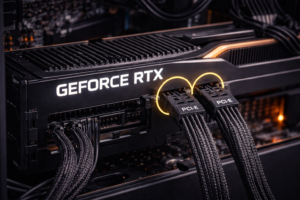
Your PSU may not deliver enough power. Steps:
Verify wattage is sufficient for GPU (check GPU TDP vs PSU rating).
Try connecting the GPU to another PCIe slot if available.
Check all 6/8-pin power connectors are secure.
Test with another PSU if possible.
4. Monitor GPU Temperatures
High temperatures often cause crash dumps:
Install monitoring software: HWMonitor, MSI Afterburner, GPU-Z
Check idle and load temps
Ideal gaming: 65–85°C
If overheating:
Clean fans and heatsinks
Improve case airflow
Replace thermal paste if old
5. Reset or Update BIOS
BIOS can affect GPU stability:
Enter BIOS → Press Delete or F2 during boot Delete
Load default/optimized settings → save & restart
Optional: update BIOS from the motherboard site
Test GPU stability after reset
Caution: BIOS updates can brick the motherboard if interrupted. Follow manufacturer instructions.
6. Check Overclocking
Overclocking increases performance but can cause instability:
Reset the GPU and CPU to default clocks
Avoid aggressive overclocking until stable
Use stress test software to confirm stability
7. Test GPU in Another System
If possible, move the GPU to a different PC:
Confirms if the GPU itself is faulty
If stable in another system → problem is PSU, motherboard, or software
8. Scan for Malware & Software Conflicts
Background processes may interfere with the GPU:
Run Malwarebytes or Windows Defender
Close unnecessary apps while gaming
Temporarily disable the antivirus to test
9. Check Event Viewer & Logs
Windows logs provide clues:
Open Event Viewer → Windows Logs → System
Look for Display driver or GPU errors
Note error codes → Google them for targeted fixes
10. Restore Windows / System Files
Corrupted Windows files may trigger crashes:
Open Command Prompt → sfc / scannow
Use DISM /Online /Cleanup-Image /RestoreHealth
Restore the system to the previous restore point if necessary
11. Use Stress Test Software
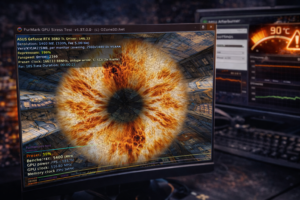
Stress tests confirm stability:
Use FurMark, 3DMark, Heaven Benchmark
Monitor temperatures and errors
Detects failing GPU or PSU issues
12. Replace Faulty Hardware if Necessary
After all fixes, persistent crashes may indicate:
GPU is defective
PSU is unstable
Motherboard has issues
Replacement may be necessary for permanent stability.
How to Prevent GPU Crashes in the Future
Keep drivers updated regularly
Monitor temperatures often → avoid graphics card keeps crashing
Avoid aggressive overclocking→ reduces GPU crash
Clean dust from the case & GPU fans→ stops GPU crashing PC
Use a high-quality PSU with sufficient wattage
Keep software and Windows updated→ prevents GPU crash dump triggered messages
Close unnecessary background apps
Conclusion
A GPU crash dump triggered doesn’t have to mean a permanent problem. By following this comprehensive, step-by-step guide, you can:
Identify the root cause
Fix driver, software, and hardware issues
Prevent future GPU crashes
Remember, most GPU crashes are solvable with drivers, cleaning, and proper monitoring. If the hardware is faulty, replacement may be necessary.
By applying these methods, your PC should remain stable, smooth, and crash-free, ready for gaming, content creation, and productivity.