
GPU Running Hot: What Temperatures Are Normal vs Dangerous?
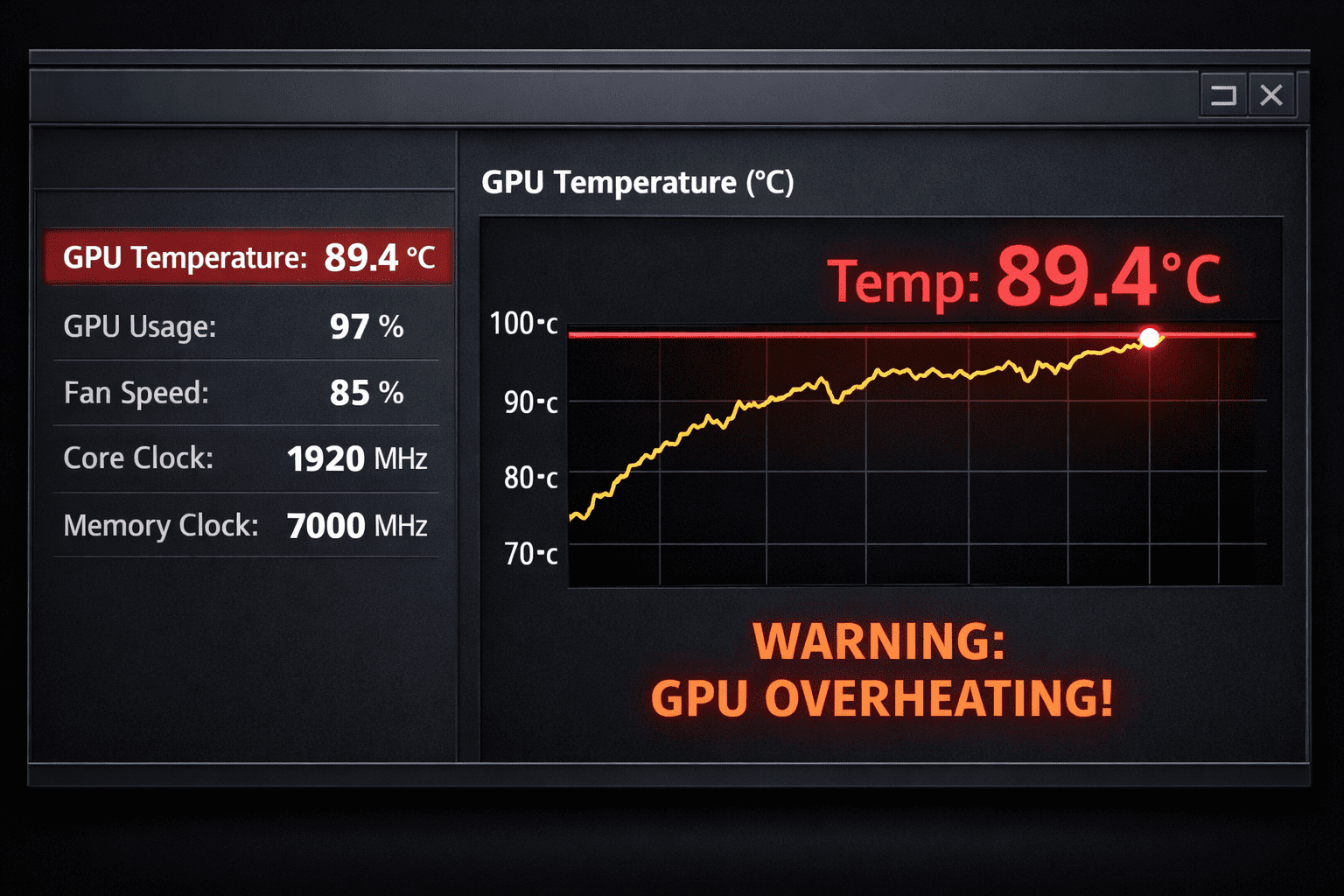
If you notice your GPU running hot or suspect it’s overheating, the first step is to understand what normal temperatures are and which are dangerous. During gaming or heavy workloads, most modern graphics cards normally run between about 60°C and 85°C, which is considered safe for performance and longevity.
Once temperatures reach 85°C–90°C, your GPU is approaching its upper safe limit, and you may start seeing performance reductions. If your GPU regularly exceeds 90°C, it may trigger thermal throttling, where the card automatically reduces performance to protect itself from damage.
Many GPUs are designed to shut down at around 100°C–105°C to prevent hardware failure, but consistently operating near these limits can shorten their lifespan due to thermal stress.
In general, if your GPU stays under about 80°C during gaming, you are in a healthy temperature range. Cooler temperatures usually mean better performance stability and longer hardware life.
GPU Overheating Warning Signs You Should Never Ignore
When a GPU overheats, your PC usually gives clear warning signs before serious damage occurs. One of the most common symptoms is loud fans running at maximum speed. GPUs automatically increase fan speed as temperatures rise, so a constantly loud fan is often a sign of excessive heat.
Another major sign is sudden FPS drops or stuttering during gameplay. When temperatures get too high, the GPU reduces clock speeds to cool down, which directly lowers performance.
You may also notice visual issues like screen flickering, strange colors, or graphical artifacts. In severe cases, your PC may crash, restart, or display a black screen. These issues often occur when GPU temperatures exceed safe limits, reducing stability.
Ignoring these warning signs can lead to permanent hardware damage or expensive repairs, especially if overheating occurs repeatedly.
Why Is My GPU Overheating? Most Common Causes
If you’re asking why my GPU is overheating, the answer is usually one of several common hardware or environmental issues.
The most common cause is dust buildup. Dust blocks airflow and traps heat around the GPU heatsink and fans, dramatically reducing cooling efficiency.
Another major cause is poor airflow inside your PC case. If hot air cannot escape efficiently, internal temperatures rise quickly, especially during gaming sessions.
Old or dried thermal paste is another common issue. Thermal paste helps transfer heat away from the GPU chip, and when it dries out, cooling performance drops significantly.
Other causes can include:
Overclocking increases heat output
High room temperatures
Faulty fans or cooling systems
Heavy workloads or ultra graphics settings
Driver or software issues are increasing the GPU load
In many cases, overheating is caused by multiple small problems rather than one major failure.
GPU Heating During Gaming vs Idle: What’s Normal?
Seeing GPU heating during gaming is completely normal. Modern GPUs automatically boost performance when running demanding games or software, which increases power usage and heat output.
Typical temperature ranges include:
Idle: 30°C–50°C
Light tasks: 40°C–60°C
Gaming: 60°C–85°C
Extreme load: 85°C–90°C
If your GPU temperature stays extremely high even when idle, that usually indicates airflow issues, dust buildup, or background software using GPU resources.
It’s important to remember that GPUs are designed to run warm, but they should not constantly sit near maximum thermal limits. Maintaining lower temperatures improves stability and lifespan.
How to Fix GPU Overheating Fast (Step-by-Step)
If your GPU is overheating, you can often fix it quickly with basic maintenance and cooling improvements.
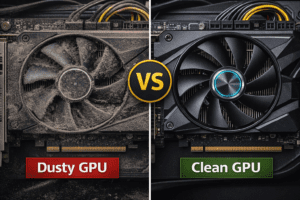
Clean Dust From Your PC
Use compressed air to clean GPU fans, heatsinks, and case filters. Dust acts as insulation, trapping heat around components.
Improve Case Airflow
Add intake and exhaust fans, improve cable management, and make sure airflow is not blocked inside your case.
Adjust Fan Curves
Many GPUs allow manual fan speed adjustments through software. Increasing fan speed can quickly lower temperatures.
Lower Power Usage (Undervolting)
Undervolting reduces power consumption and heat output while maintaining most performance.
Replace Thermal Paste (Advanced)
If your GPU is several years old, replacing thermal paste can significantly improve cooling efficiency.
Even simple cleaning can lower GPU temps by several degrees and restore stable performance.
How to Prevent GPU Overheating Long-Term
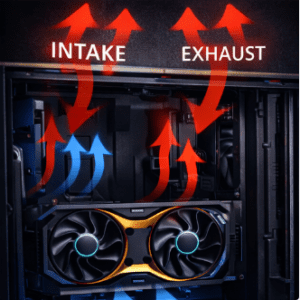
Preventing future GPU overheating is mostly about regular maintenance and monitoring.
Clean your PC every few months to prevent dust buildup. Monitor temperatures while gaming using system monitoring tools. Avoid extreme overclocking unless you have strong cooling solutions.
Also consider:
Keeping your room temperature cool
Ensuring good case airflow
Keeping your GPU under ~85°C during heavy use
Running consistently at lower temperatures helps prevent thermal degradation and extends your GPU’s lifespan.
Final Thoughts
GPU overheating is one of the most common hardware issues gamers and PC users face, but it is also one of the easiest to prevent. If you monitor temperatures, clean your system regularly, and maintain good airflow, your GPU can last for years without performance problems.
If your GPU running hot becomes a regular issue, start by cleaning and improving airflow before assuming hardware failure. Most overheating problems are caused by maintenance issues, not defective components.