
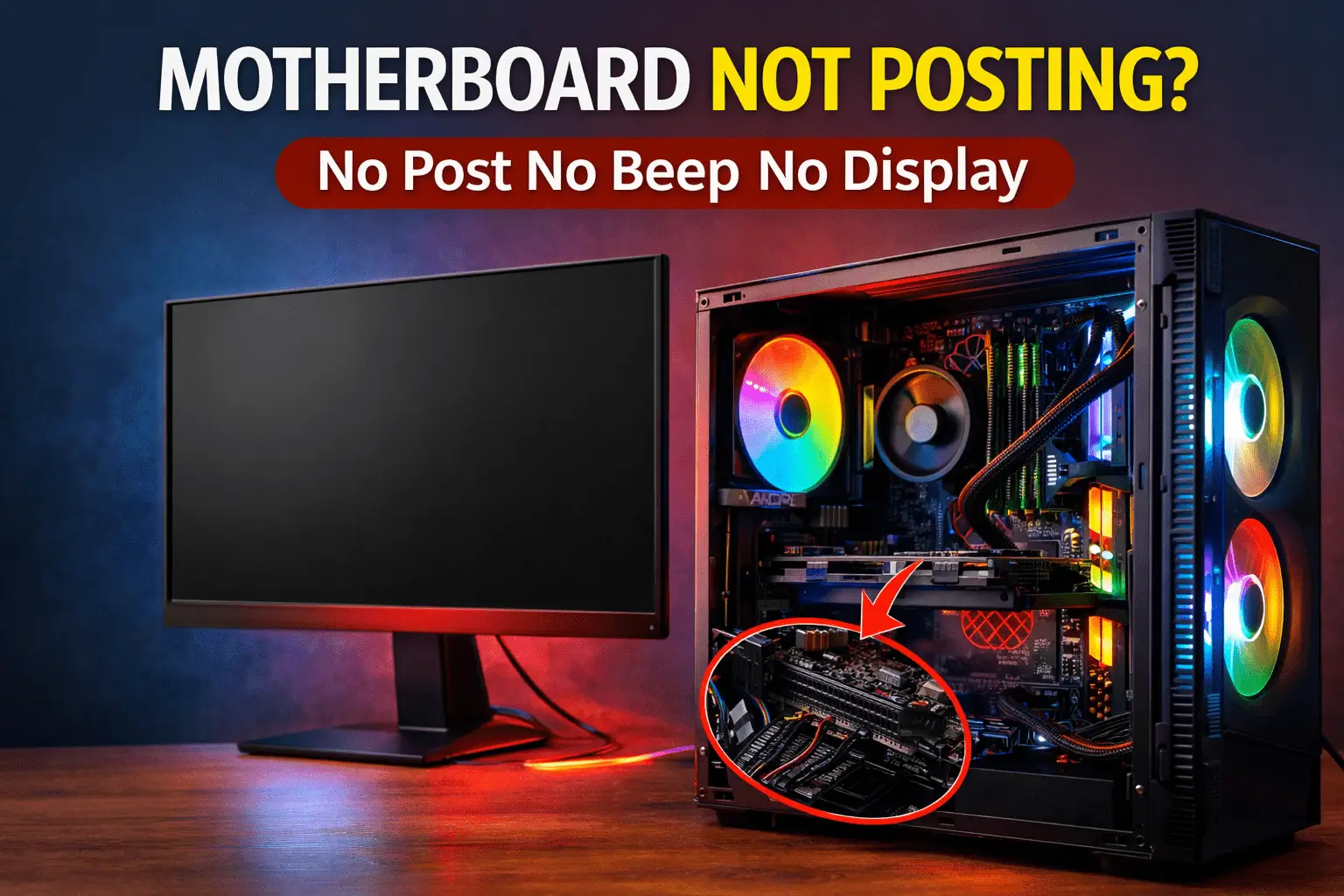
If your motherboard not posting has you stuck staring at a blank screen, you’re not alone. One of the most frustrating PC problems is when your system powers on, fans spin, RGB lights up — but you get no post, no beep, no display. When a PC fails to post, it usually indicates the system is failing during the Power-On Self-Test (POST), which is controlled by the motherboard and BIOS. The good news? Most no-POST problems are fixable without replacing your entire motherboard. In this guide, we’ll walk through 8 fixes that actually work, whether your issue started after a BIOS update, a new RAM installation, a GPU swap, or a random power failure.
1. Double-Check All Power Connections (Most Common Cause)
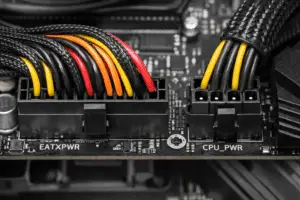
Before assuming your motherboard is dead, inspect every power connection. A motherboard not posting issue often happens because of a loose 24-pin ATX cable or a disconnected 8-pin CPU power connector. Many users troubleshoot RAM and GPUs first, but forget the CPU power cable near the top of the motherboard. If that cable isn’t fully seated, your pc not posting situation will show symptoms like spinning fans, but no post no beep no display. Remove the cables and firmly reconnect them until you hear a click. Also check the PSU switch, surge protector, and wall outlet. If your motherboard has debug LEDs, see if a CPU or DRAM light stays on — this gives clues about what’s failing during POST.
2. Reseat the RAM (Bad RAM = No POST)
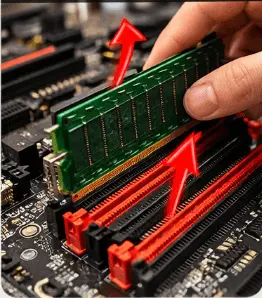
Faulty or improperly seated RAM is one of the top causes of no-post, no-beep, no-display errors. When your motherboard cannot detect memory, it will fail POST immediately. Power off the system completely, unplug it, and remove all RAM sticks. Reinsert a single stick into the correct slot recommended by your motherboard manual (usually slot A2). If your motherboard’s not-posting issue started after installing new memory, it may be incompatible or require a BIOS update to support higher speeds. Try booting with one stick at a time. If one stick works and another doesn’t, you’ve identified the problem. This fix alone resolves a huge percentage of pc not posting problems.
3. Clear the CMOS (Reset the BIOS)
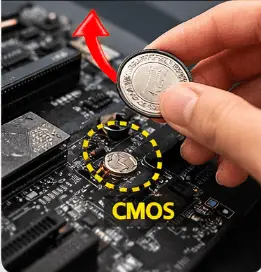
If your system stopped working after changing BIOS settings or performing a BIOS update, clearing CMOS can bring your motherboard back to life. Incorrect voltage settings, XMP profiles, or failed firmware flashes can prevent POST entirely. To clear CMOS, power off the system and remove the small silver battery on the motherboard for 5–10 minutes. Some boards also have a CMOS reset jumper. This resets BIOS settings to factory defaults. Many users report that their motherboard not posting problem disappeared immediately after resetting the BIOS. If your issue began right after a BIOS update, this step is critical before assuming the motherboard is permanently damaged.
4. Remove the GPU and Test Integrated Graphics
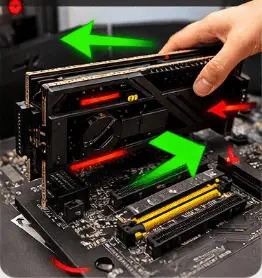
If your pc not posting, shows fans running but no screen output, your GPU could be the problem. A faulty graphics card can cause a no post no beep no display situation even if the motherboard itself is fine. Remove the GPU completely and connect your monitor to the motherboard’s HDMI or DisplayPort (if your CPU supports integrated graphics). If the system boots, your GPU may be dead or not seated properly. Also, inspect PCIe cables if using a high-powered card. Sometimes simply reseating the GPU fixes the issue. Many builders immediately blame the motherboard when in reality, the graphics card is blocking POST from completing.
5. Inspect the CPU and Socket
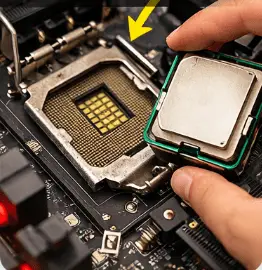
A bent CPU pin or improperly seated processor can instantly cause a motherboard not to post. Remove the CPU cooler carefully and inspect the processor and socket under good lighting. Look for bent pins, debris, or thermal paste contamination inside the socket. If your pc not posting after upgrading CPUs, the motherboard may require a BIOS update to support the newer processor. This is extremely common with AMD and Intel chip generations. Without the correct BIOS version, the motherboard simply cannot initialize the CPU during POST, resulting in no display or beep codes.
6. Test the Power Supply (PSU Failure Symptoms)
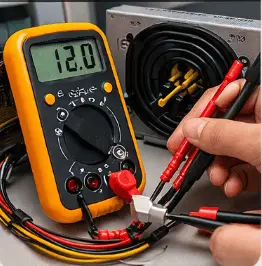
A failing PSU can supply enough power to spin fans but not enough stable voltage for POST. This creates a classic no post no beep no display scenario. If possible, test your system with a known working PSU. Alternatively, use a PSU tester or multimeter to verify voltage outputs. When diagnosing a motherboard not posting issue, many users overlook unstable power delivery. Sudden shutdowns before the problem began are also a clue that your PSU may be failing. Power-related issues are especially common after storms or power surges.
7. Breadboard the Motherboard (Check for Short Circuits)
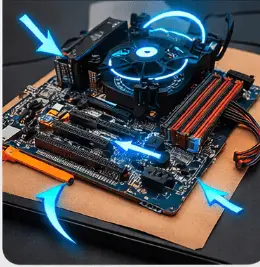
If your system still shows pc not posting symptoms, remove the motherboard from the case and test it outside on a non-conductive surface like cardboard. Sometimes a misplaced standoff or loose screw causes a short circuit behind the motherboard, preventing POST. This method, called breadboarding, eliminates the possibility of case grounding issues. Connect only the essentials: CPU, one RAM stick, PSU, and integrated graphics (if available). If it boots outside the case, you’ve found your issue. Short circuits are an underrated cause of motherboard not posting problems.
8. Identify a Dead Motherboard (When Replacement Is Necessary)
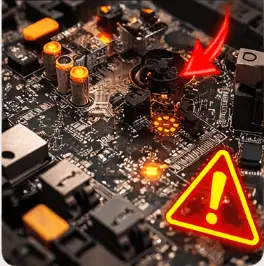
If you’ve tried every fix and still experience no post, no beep, no display, the motherboard itself may be dead. Signs include visible burn marks, bulging capacitors, or a complete lack of debug LED activity. Failed BIOS update attempts can permanently brick a motherboard if recovery features aren’t available. In this situation, replacement may be the only option. Before buying a new motherboard, confirm that your CPU and RAM work in another compatible system if possible. A truly dead motherboard will fail POST even with verified working components.
Final Thoughts
A motherboard not posting issue can feel catastrophic, but most cases are fixable without buying new hardware. Whether your pc not posting after a BIOS update, RAM upgrade, GPU installation, or random power event, systematically working through these 8 fixes will resolve the majority of cases. Always start with the simplest solutions — power connections and RAM — before assuming motherboard failure. By troubleshooting step-by-step, you can turn a frustrating no post, no beep, no display situation into a successful repair.