
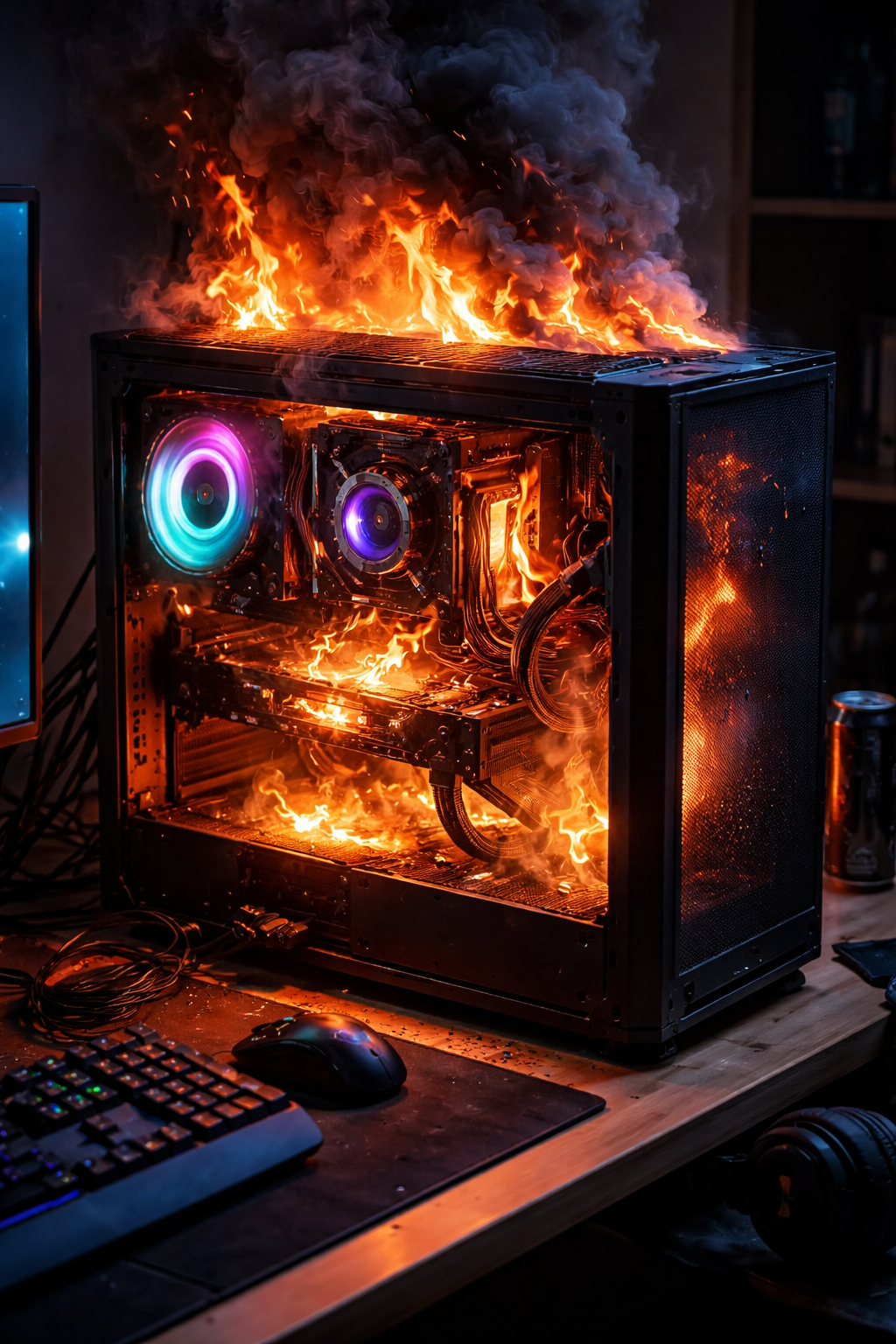
When a PC is overheating, it doesn’t just affect performance — it shortens the lifespan of your components and can permanently damage your system. PC overheating is particularly common in high-performance builds, where powerful CPUs and GPUs generate substantial heat. If your gaming PC overheating during long sessions, this guide will walk you through why it happens, how to diagnose it, and the most effective PC overheating solutions used by professionals.
🔥 What Happens When Your PC Overheats?
When your PC is overheating, modern components try to protect themselves through a process called thermal throttling. This means your CPU or GPU automatically lowers its clock speed to reduce heat, which results in:
-
Lower FPS in games
-
Longer load times
-
Input lag and stuttering
-
Sudden application crashes
If temperatures continue rising, the system may shut down entirely to prevent damage. Frequent overheating accelerates wear on silicon chips, dries out thermal paste, and weakens solder joints — all of which can lead to costly failures.
🧯 Common Causes of PC Overheating
Understanding why a PC overheats is the first step toward fixing it.
-
Dust accumulation blocks airflow and insulates heat
-
Poor thermal paste application reduces heat transfer
-
Inadequate cooling hardware for high-end CPUs or GPUs
-
Restricted airflow due to small cases or poor fan placement
-
High ambient room temperature
-
Overclocking without sufficient cooling
Many gamers experience gaming PC overheating simply because their system outgrew its original cooling setup.
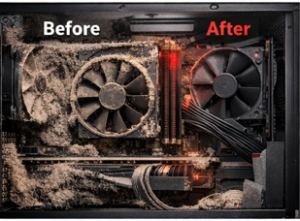
🧹 Step 1: Deep Clean Your PC (Most Overlooked Fix)
Dust buildup is the silent killer behind many PC overheating cases. Even a thin layer of dust can trap heat.
Take time to clean:
-
CPU heatsink fins
-
GPU fans and shroud
-
Case intake and exhaust fans
-
Power supply vents
A deep clean every 3–6 months can drastically reduce temperatures and fan noise.
🧴 Step 2: Reapply Thermal Paste Correctly
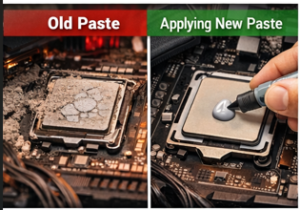
Thermal paste degrades over time and becomes less effective.
When reapplying:
-
Use high-quality thermal paste
-
Apply a pea-sized amount in the center
-
Ensure even mounting pressure
This step alone is one of the most reliable PC overheating solutions, especially for older systems.
🌬️ Step 3: Optimize Case Airflow
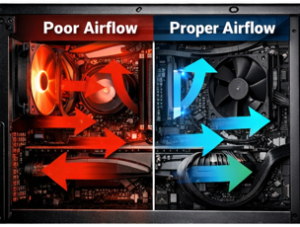
If your PC is overheating even after cleaning, airflow may be inefficient.
Best airflow practices:
-
Front fans pull cool air in
-
Rear and top fans push hot air out
-
Avoid mixing intake and exhaust directions
-
Route cables behind the motherboard tray
Balanced airflow prevents heat from lingering inside the case — a common reason for gaming PC overheating.
🌡️ Step 4: Monitor Temperatures During Gaming
Temperature spikes often happen under load, not idle.
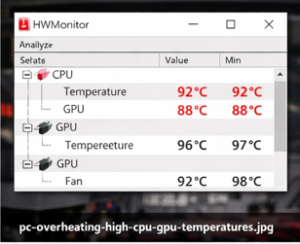
Use monitoring tools to check temps while gaming:
-
CPU sustained temps above 85°C = problem
-
GPU sustained temps above 88°C = problem
Tracking temperatures helps confirm whether your PC overheating issue is CPU, GPU, or airflow-related.
⚡ Step 5: Overclocking & Power Settings
Overclocking boosts performance but significantly increases heat output.
If your gaming PC is overheating:
-
Revert CPU and GPU to stock speeds
-
Lower CPU voltage slightly (undervolting)
-
Use balanced power mode instead of high performance
Many gamers find undervolting improves thermals without losing FPS.
💧 Step 6: Upgrade Your Cooling System
Some systems simply need better cooling.
Effective upgrades include:
-
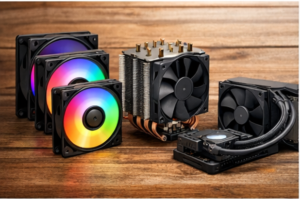
Tower-style air coolers
-
AIO liquid coolers for CPUs
-
High-static-pressure case fans
Upgrading cooling is a long-term PC overheating solution that improves stability and performance.
🧩 Step 7: Check for Failing Fans or Hardware
A failing fan can cause localized overheating.
Watch for:
-
Fans not spinning
-
Grinding or rattling noises
-
Inconsistent fan speeds
Replace faulty fans immediately to prevent permanent damage.
🏁 Final Thoughts: Prevent PC Overheating Before It’s Too Late
When your PC is overheating, it’s not just an inconvenience — it’s a warning. Addressing PC overheating early protects your investment, improves gaming performance, and extends hardware lifespan. These PC overheating solutions are proven, practical, and used by experienced PC builders and technicians.
A cool PC is a fast PC — and your games will thank you.