

Few things are more alarming than turning on your gaming laptop and realizing the laptop screen is black, even though the keyboard lights up, fans spin, and you can hear Windows loading. When your laptop black screen but on, it usually means the system itself is working, but something is preventing the display from showing an image.
If your laptop screen is black but still running, this guide will help you identify the exact cause and walk you through professional-grade fixes, starting with simple solutions and moving toward advanced troubleshooting used by repair technicians.
🔍 Why Does a Gaming Laptop Get a Black Screen?
Gaming laptops are more prone to black screen issues because they rely on high-performance GPUs, complex power delivery systems, and dual-graphics switching (integrated + dedicated GPU). A laptop screen is black. The problem can be triggered by:
-
GPU driver crashes after updates or overheating
-
Windows fast startup conflicts
-
Display output switching to an inactive port
-
Corrupted BIOS or firmware
-
Loose internal display cable
-
Backlight failure due to heat damage
-
GPU or motherboard hardware failure
Understanding these causes helps you avoid unnecessary replacements and focus on the correct fix.
🔌 Step 1: Perform a Complete Hard Reset
If your laptop black screen but on, a hard reset should always be your first step. Power glitches and residual electricity can cause display controllers to freeze.
-
Shut down the laptop completely
-
Disconnect the charger
-
Remove the battery (if possible)
-
Hold the power button for 30–60 seconds
-
Reinstall the battery and reconnect the power
-
Turn the laptop back on
This process clears corrupted power states and resolves many cases where the laptop screen is black but still running.

🖥️ Step 2: Test with an External Monitor
When the laptop screen is black, connecting an external monitor helps determine whether the issue is software-related or hardware-related.
-
Connect HDMI or DisplayPort to a TV or monitor
-
Turn on the laptop
-
Press Windows + P and cycle through display modes
If the external display works, your GPU is functioning — meaning the issue is likely:
-
A faulty laptop screen
-
A damaged display cable
-
A failed backlight
This is one of the most important diagnostic steps.
🎮 Step 3: Reset the Graphics Driver (Gaming Laptop Specific Fix)
Gaming laptops frequently experience GPU driver crashes due to overheating, overclocking, or driver conflicts. If your laptop black screen but on, try this shortcut:
Windows + Ctrl + Shift + B
This resets the graphics driver without restarting Windows. You may hear a beep or see the screen flicker briefly.
🧩 Step 4: Boot into Safe Mode and Reinstall GPU Drivers
If your laptop screen is black but still running, Windows may be loading a corrupted graphics driver.
-
Power on and force shutdown three times
-
Enter Windows Recovery Environment
-
Go to Advanced Options → Startup Settings
-
Press 4 for Safe Mode
Once in Safe Mode:
-
Open Device Manager
-
Uninstall NVIDIA or AMD drivers
-
Restart the laptop
-
Install the latest drivers from the manufacturer’s website
This step fixes many persistent black screen issues after Windows or GPU updates.
🧠 Step 5: Reset BIOS and Disable Fast Startup
BIOS misconfigurations can cause a laptop screen is black screen issue, especially after updates.
-
Power on the laptop
-
Press F2, F10, or Delete to enter BIOS
-
Select Load Optimized Defaults
-
Save and exit
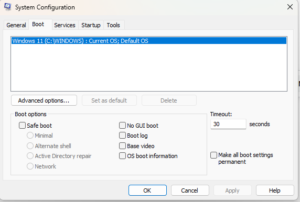
Once back in Windows, disable Fast Startup to prevent future black screen problems caused by incomplete shutdowns.
🔩 Step 6: Check RAM, Display Cable, and Internal Connections
A loose RAM module or display connector can cause a black screen on the laptop, but this is not the only symptom.
-
Reseat RAM sticks
-
Inspect the LCD cable near the hinge
-
Check for signs of overheating or damage
Gaming laptops generate more heat, making internal connectors more likely to loosen over time.

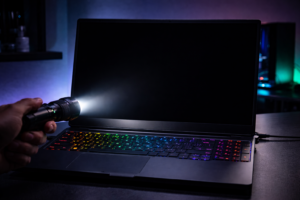
🔦 Step 7: Test for Backlight Failure
If the laptop screen is black but you can faintly see images under a flashlight, the screen’s backlight has failed.
This typically requires:
-
LCD panel replacement
-
Backlight circuit repair
Backlight failure is common in older gaming laptops or systems that run at high temperatures.
⚠️ When the Problem Is Likely Hardware Failure
If none of these steps resolve the issue and your laptop screen is black but still running, the most likely causes are:
-
Failing GPU chip
-
Motherboard power rail failure
-
Shorted display circuitry
At this point, professional repair or part replacement is required.
🏁 Final Verdict
When your laptop black screen but on, it doesn’t automatically mean your gaming laptop is dead. In most cases, the system is still functioning and can be restored with the right troubleshooting steps. By methodically testing software, display output, power states, and hardware, you can identify the root cause and avoid unnecessary expenses.
This guide is designed to help gamers and DIY repairers confidently diagnose and fix black screen issues — restoring performance and getting you back in the game.