
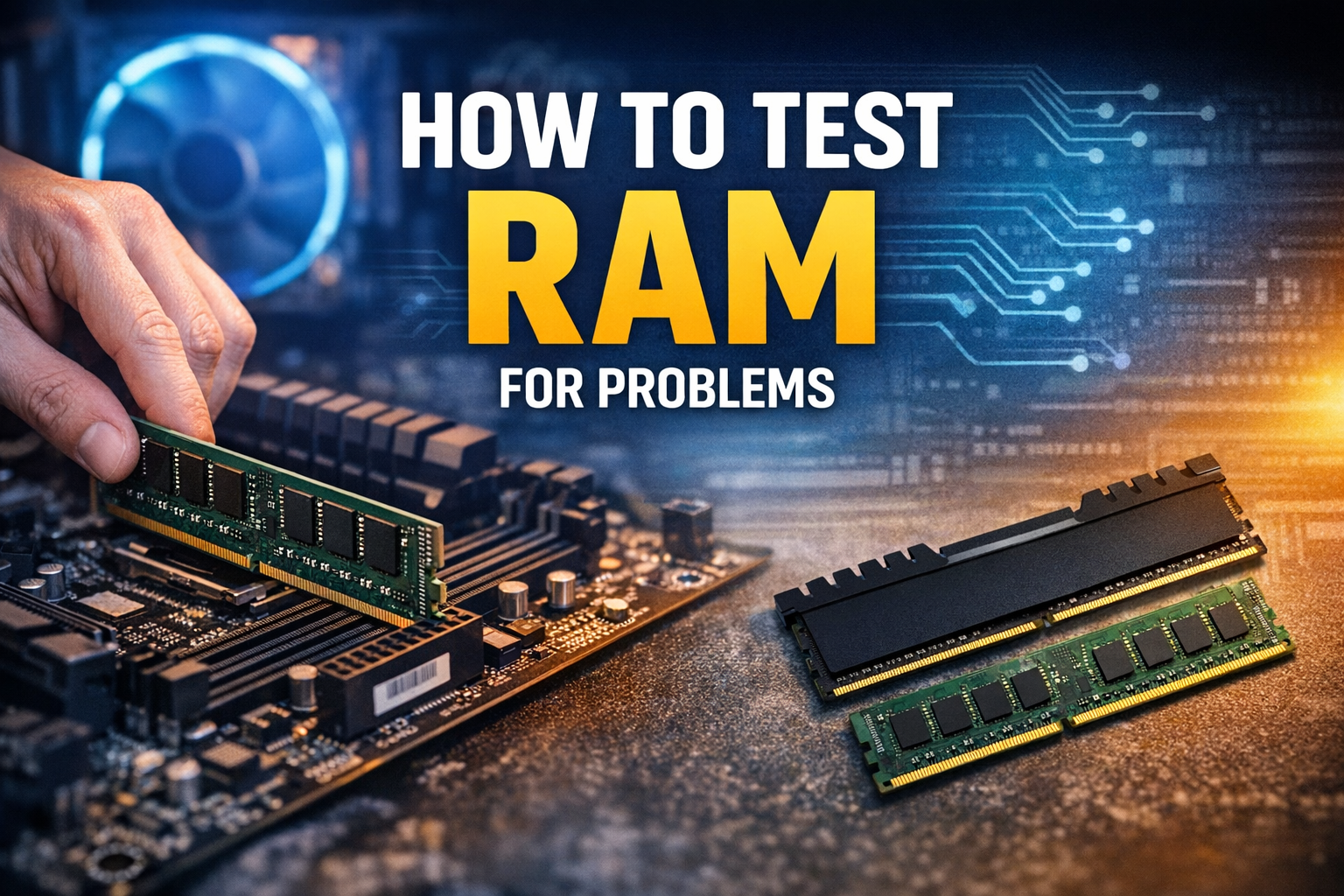
If your computer is crashing, freezing, or acting unpredictably, one of the most overlooked causes is faulty memory. Learning how to test RAM properly can save you hours of frustration and even prevent costly hardware replacements.
In this complete guide, you’ll learn how to test RAM, identify failure symptoms, and use both built-in tools and advanced software to diagnose problems. Whether you’re a beginner or an experienced PC user, this guide will walk you through everything step-by-step.
What Is RAM and Why Does It Matter
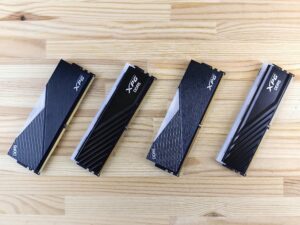
RAM (Random Access Memory) is your computer’s short-term memory. It temporarily stores data your system needs to access quickly, such as open programs, browser tabs, and system processes.
Unlike storage (SSD/HDD), RAM is fast but volatile—it resets every time you shut down your PC.
When RAM fails, your entire system becomes unstable.
Signs Your RAM Might Be Failing
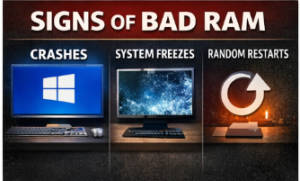
Before you test RAM, you need to confirm the symptoms. Faulty RAM doesn’t always fail outright—it often shows subtle warning signs.
Common RAM failure symptoms:
- Random system crashes (BSOD)
- Frequent application crashes
- PC freezing or restarting
- Slow performance over time
- Files becoming corrupted
- PC failing to boot
- Beeping sounds during startup
These issues are strong indicators that you should test RAM immediately. It’s also worth mentioning that Random crashes like the Blue Screen of Death can often indicate memory issues. If you’re seeing this error frequently, check out our guide on Blue Screen Error: Causes and Solutions Explained to understand the root cause.
Why You Should Test RAM
Testing your RAM is crucial because:
- RAM errors can mimic CPU or GPU issues
- Faulty memory can corrupt your operating system
- It helps isolate hardware vs software problems
- It prevents data loss
Many PC issues are misdiagnosed when RAM is actually the root cause.
How RAM Testing Works
To understand how to test RAM, you need to know how testing tools work.
RAM testing software:
- Writes data to memory
- Reads it back
- Checks for mismatches
If the data read is different from what was written, your RAM has errors.
How to Test RAM (Quick Methods)
There are three main ways to test RAM:
1. Built-in tools (Beginner-friendly)
- Windows Memory Diagnostic
2. Bootable tools (Most accurate)
- MemTest86
3. Software tools (Advanced users)
- HCI MemTest
- TestMem5
Each method varies in accuracy and difficulty.
How to Test RAM Using Windows Memory Diagnostic
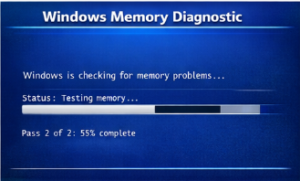
This is the easiest way to test RAM on Windows.
Step-by-step guide:
- Press Windows + R
- Type:
mdsched.exe - Press Enter
- Click Restart now and check for problems
Your PC will reboot and begin testing automatically.
Test Options:
- Basic (quick scan)
- Standard (recommended)
- Extended (deep scan)
After testing, the results appear in the Event Viewer.
This method is simple and built into Windows, but it’s not the most thorough.
How to Test RAM Using MemTest86 (Best Method)
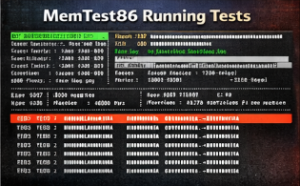
If you are looking for the most accurate way to test your RAM, it’s best to use MemTest86.
Why MemTest86?
- Runs outside your operating system
- Tests all RAM thoroughly
- Detects even minor errors
Step-by-step:
- Download MemTest86
- Create a bootable USB
- Restart your PC
- Boot from USB
- Let the test run (4+ passes recommended)
Even a single error means your RAM is faulty.
How to Test RAM with Third-Party Tools
For more advanced testing, use these tools:
HCI MemTest
- Runs inside Windows
- Allows multiple test instances
- Good for stress testing
TestMem5
- Highly customizable
- Popular with overclockers
- Deep memory testing
Google Stress App Test (Linux)
- Used for extreme stress testing
- Time-based testing system
These tools can detect issues that basic diagnostics miss.
Physical RAM Testing (Hardware Method)
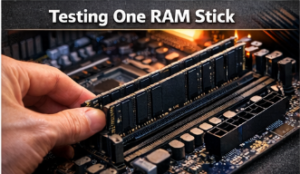
Sometimes software isn’t enough; in that case, it’s best to do a physical test instead of a software test.
Manual testing steps:
- Turn off your PC
- Remove all RAM sticks
- Insert one stick at a time
- Boot and test each stick individually
This helps identify:
- Faulty RAM sticks
- Bad motherboard slots
What to Do If RAM Fails
If your test RAM results show errors:
1. Reseat RAM
Remove and reinstall it properly.
2. Disable XMP/Overclocking
Unstable overclocks can cause errors.
3. Test each stick individually
4. Replace faulty RAM
Most RAM comes with a lifetime warranty.
Tips to Prevent RAM Issues
To avoid needing to test RAM frequently, follow these tips:
- Keep your system cool
- Avoid unstable overclocking
- Use quality power supplies
- Update BIOS regularly
- Handle RAM carefully
How Long Should You Test RAM?
- Quick test: 15–30 minutes
- Standard test: 1–2 hours
- Deep test: Overnight (recommended)
The longer the test, the more accurate the results.
Common Mistakes When Testing RAM
Avoid these mistakes:
- Stopping tests too early
- Not testing each stick individually
- Ignoring minor errors
- Running only one testing tool
For best results, combine multiple methods.
Advanced RAM Testing Tips
For power users:
- Run tests overnight
- Use multiple tools
- Test under load (gaming, rendering)
- Monitor temperatures
When to Replace RAM
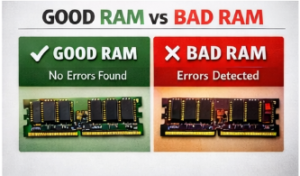
Replace RAM if:
- Errors appear consistently
- System crashes persist
- Tests fail repeatedly
RAM is not repairable—replacement is the only solution.
Final Conclusion
Learning how to test RAM is an essential skill for any PC user. Faulty memory can cause everything from minor slowdowns to complete system failure.
The best approach is:
- Start with Windows Memory Diagnostic
- Move to MemTest86
- Use advanced tools if needed
- Physically test RAM sticks
By following this guide, you’ll be able to confidently test RAM, diagnose issues, and fix your system like a pro.