
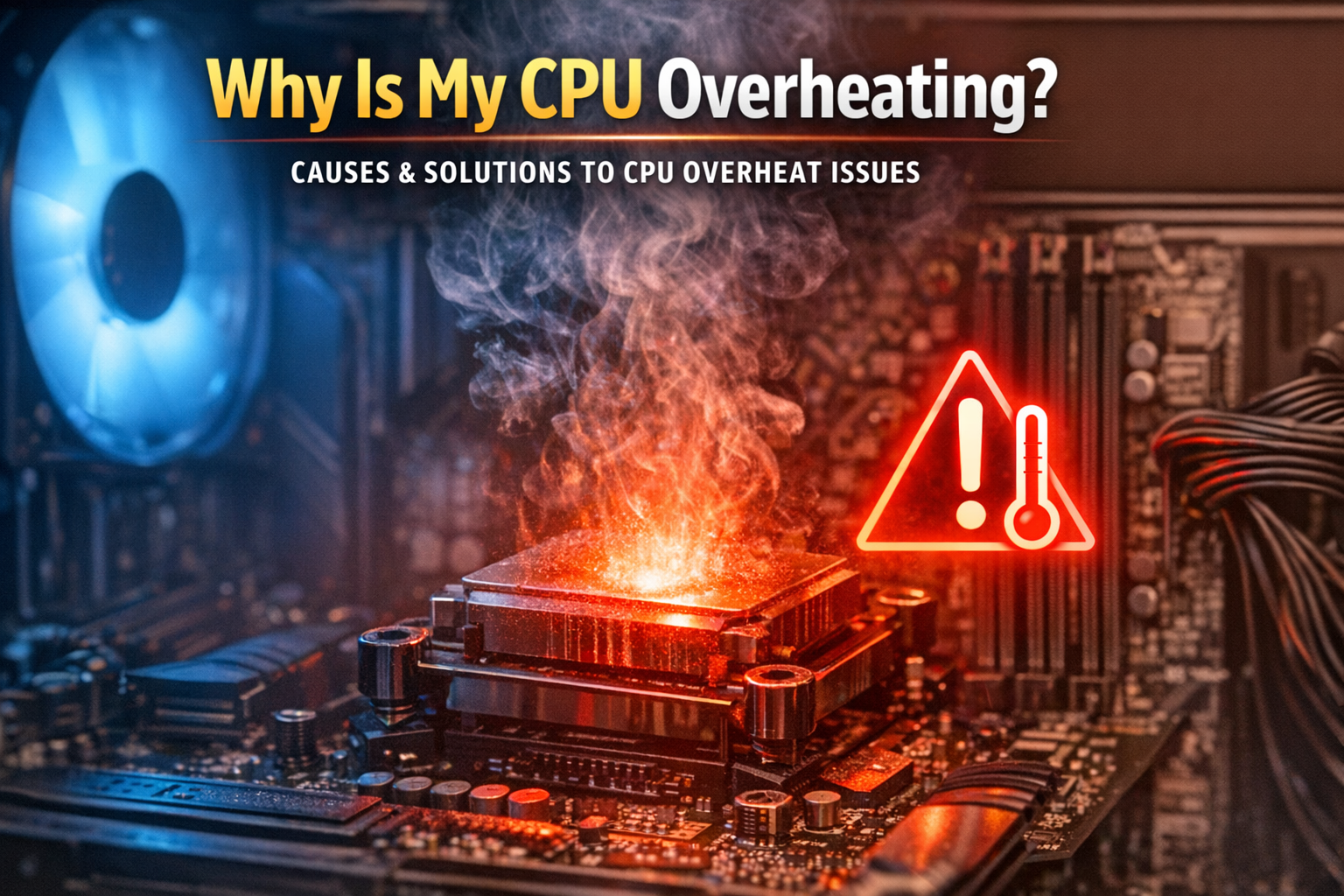
Modern CPUs are powerful, but with great power comes the responsibility to keep them cool. If you’ve ever wondered, “why is my CPU overheating?”, you’re not alone. CPU overheating can cause reduced performance, crashes, or even permanent damage if left unchecked. This guide will explain why CPUs overheat, how to identify the problem, and practical solutions to keep your processor running safely.
Signs That Your CPU is Overheating
Before diving into fixes, it’s important to recognize the signs that your CPU is heating up too much:
- Unexpected Shutdowns or Restarts: A CPU that overheats can force your PC to shut down to prevent damage.
- System Lag or Stuttering: High temperatures can cause thermal throttling, slowing down your CPU to reduce heat.
- Loud or Constant Fan Noise: Fans running at full speed consistently often indicate your CPU is struggling to stay cool.
- Blue Screens or Error Messages: Overheating can trigger system errors and instability.
If you notice any of these symptoms, it’s time to investigate why your CPU is overheating.
If your PC shuts down unexpectedly, overheating is often the cause. You can read our full breakdown in Why Does My PC Randomly Turn Off? (Step-by-step guide 2026) for more detailed troubleshooting.
Common Causes of CPU Overheating
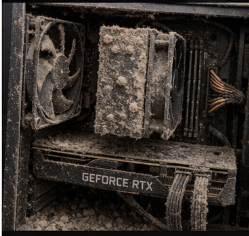
Understanding the root cause is key to preventing future issues. Here are the most common reasons CPUs overheat:
1. Poor Airflow and Dust Buildup
Dust accumulation can block air vents, obstruct fans, and trap heat inside the case. Over time, this reduces cooling efficiency.
Tip: Clean your PC regularly using compressed air. Pay attention to the CPU heatsink, case fans, and intake/exhaust vents.
2. Insufficient or Faulty Cooling
A low-quality stock cooler or a malfunctioning fan can fail to dissipate heat effectively. Liquid coolers can also fail if the pump or radiator has issues.
Tip: Ensure your cooler is rated for your CPU’s thermal design power (TDP). Consider upgrading to a high-performance air or liquid cooler if needed.
3. Overclocking Risks
Pushing your CPU beyond its factory settings increases power consumption and heat output. Without adequate cooling, overclocking is a common cause of CPU overheating.
Tip: Monitor temperatures carefully when overclocking, and ensure your cooling solution can handle the extra heat.
4. Degraded Thermal Paste
Thermal paste helps transfer heat from the CPU to the cooler. Over time, it can dry out or degrade, reducing cooling efficiency.
Tip: Reapply high-quality thermal paste every few years or when installing a new cooler.
5. Ambient Temperature and Case Setup
High room temperatures and poor case ventilation can lead to a CPU heating up. Tight cable management and blocked airflow also contribute to overheating.
Tip: Maintain ambient temperatures under 25°C (77°F) for optimal performance, and ensure airflow paths are clear.
If your system is running hot overall, it’s not just your processor—you may also be dealing with GPU heat issues. Check out our guide on GPU Overheating: Signs and Solutions You Need to diagnose your entire system.
How to Check CPU Temperature
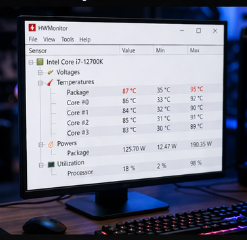
Knowing your CPU temperature is the first step in diagnosing overheating. Several tools can help:
1. BIOS/UEFI
Most motherboards display CPU temperature in the BIOS or UEFI menu. Reboot your PC and enter BIOS (usually by pressing Del or F2). Look for CPU temperature under “Hardware Monitor” or “PC Health.”
2. Software Monitoring Tools
External software can provide real-time temperature readings:
- HWMonitor – A free, reliable tool for monitoring CPU temps and voltages.
- Core Temp – Lightweight software for detailed CPU temperature readings.
- Ryzen Master – For AMD users, offers monitoring and overclocking controls.
- Intel Extreme Tuning Utility (XTU) – For Intel CPUs, provides temp readings and tuning options.
Tip: CPU temps under 70°C are generally safe, though thresholds vary by CPU model. Frequent readings above 85–90°C indicate overheating.
Practical Solutions to CPU Overheating
Once you know your CPU is overheating, it’s time to fix it. Here are proven solutions:
1. Clean Your PC and Improve Airflow
- Remove dust from fans, heatsinks, and vents.
- Organize cables to prevent airflow obstruction.
- Add case fans if needed to improve intake and exhaust.
2. Reapply Thermal Paste
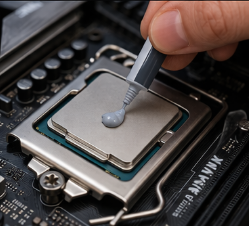
- Remove the old paste with isopropyl alcohol.
- Apply a small, pea-sized amount of new thermal paste.
- Reinstall the CPU cooler, ensuring firm, even contact.
3. Upgrade Your CPU Cooler
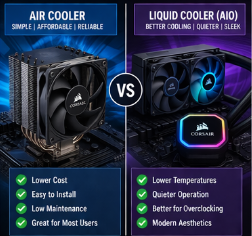
- Stock coolers are fine for normal use, but heavy workloads or overclocking may require better cooling.
- High-quality air coolers or all-in-one (AIO) liquid coolers provide superior heat dissipation.
- For comparison, see our guide: Best CPU Coolers for High Performance.
4. Reduce Overclocking or Adjust Voltage
- Lower CPU clock speeds or voltages in BIOS/UEFI.
- Avoid extreme overclocking without proper cooling.
5. Monitor Ambient Temperature
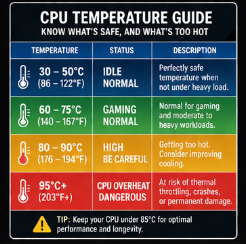
- Keep your room cool, preferably under 25°C (77°F).
- Ensure your PC is not placed in enclosed spaces or near heat sources.
Preventive Measures for CPU Overheating
Preventing overheating is easier than fixing it. Consider these proactive steps:
1. Use Monitoring Software
Regularly monitor temperatures with tools like HWMonitor, Core Temp, or your motherboard’s utility software.
2. Maintain Your PC
Clean dust, check fans, and replace degraded thermal paste regularly. Consider scheduling maintenance every 6–12 months.
3. Optimize Case Airflow
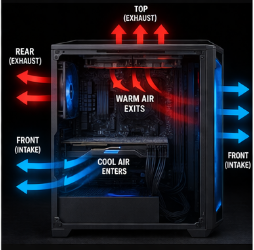
- Install intake fans at the front and exhaust fans at the rear/top.
- Avoid cables blocking airflow paths.
- Use cases are designed for airflow rather than aesthetics alone.
4. Avoid Risky Overclocking
Stick to factory CPU speeds unless you have advanced cooling and understand thermal limits.
When to Seek Professional Help
Sometimes CPU overheating requires more than DIY fixes:
- Persistent high temperatures despite cleaning and proper cooling.
- Hardware damage signs include burnt components or system instability.
- Warranty concerns: If your CPU or motherboard is under warranty, consider contacting the manufacturer.
Professional repair or replacement can prevent permanent damage and save you from costly mistakes.
In extreme cases, overheating can affect your system’s ability to boot. If your PC won’t start at all, check out Motherboard Not Posting: 8 Fixes That Work for deeper hardware troubleshooting
Conclusion
CPU overheating is a common but preventable issue. By recognizing the signs, understanding the causes, and following practical solutions, you can keep your CPU running safely and efficiently. Regular monitoring, proper cooling, and preventive maintenance are key to avoiding system instability and ensuring your PC performs at its best.
If your CPU is heating up, take action today: clean your system, check your temperatures, and upgrade your cooling if needed. Don’t wait for damage to occur — your CPU will thank you.